
Blog
A firewall setup for a 20-person office, step by step
A 20-person office needs one real firewall at the edge, a network split into a few zones, default-deny rules, a VPN for remote access, and a habit of updating and backing up the configuration. You can do all of it with a modest appliance or a small server running an open-source firewall. This post gives the order we would work in.
We run our own firewalls in production, and the same basics apply at every size.
What does a 20-person office actually need?
Less than vendors suggest, but more than the router your ISP gave you. The job is simple: decide what may talk to what, and keep everything else out.
You need:
- A firewall with stateful rules, a VPN and regular updates
- A managed switch that supports VLANs
- Access points that support separate networks for staff and guests
- A UPS, so the firewall survives short power cuts
- A written network plan
Throughput is rarely the problem for 20 people. A small appliance handles it. Pick for reliability and update support.
Step 1: Which hardware or software should you choose?
Two sensible routes:
- A commercial appliance with a support contract. You pay for vendor support and a polished interface.
- An open-source firewall on a small fanless machine. You pay in your own time, and you get flexibility and no licence fees.
Either works. Avoid a firewall you cannot update. Check that security updates are still being released for the model you buy.
Step 2: How should you split the network?
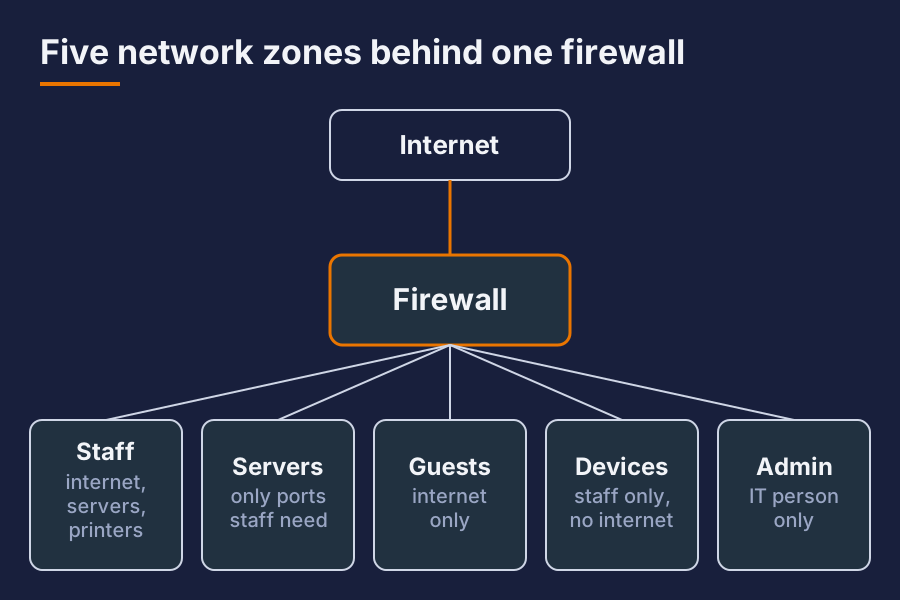
Put different kinds of devices in separate zones, using VLANs. A good start for 20 people:
| Zone | What lives there | Rules |
|---|---|---|
| Staff | Laptops and desktops | Internet, servers, printers |
| Servers | File server, internal apps | Only the ports staff need |
| Guests | Visitor Wi-Fi | Internet only, nothing internal |
| Devices | Printers, cameras, door controllers | Reachable by staff, no internet unless needed |
| Management | Firewall, switch and access point admin | Only the IT person |
Why this helps: if one laptop is infected or a guest phone is compromised, the damage stops at the zone boundary.
Step 3: What should the firewall rules look like?
Start from default deny. Traffic is blocked unless a rule allows it. Then add rules one by one.
Keep a short rule set:
- Allow staff to the internet on the ports they need.
- Allow staff to specific services on the servers zone.
- Allow guests to the internet only.
- Block devices from the internet unless a vendor service needs it.
- Allow management access from one named place.
- Log blocked traffic at the edge.
Name each rule and write a one-line reason. In a year, nobody remembers why a rule exists. A comment saves a lot of guessing.
Avoid “any to any” rules, even temporary ones. Temporary rules become permanent.

Step 4: How do you handle remote work?
Use a VPN with strong authentication. Do not open remote desktop or admin pages straight to the internet. Those are the most attacked services there are.
Good practice:
- One VPN, with a named account per person
- Multi-factor authentication
- Access only to what the person needs, not the whole network
- Remove accounts when people leave
Staff who work from home then reach internal services through the VPN, and the internet sees almost nothing of your office.
Step 5: What should you switch on for extra protection?
Most firewalls have optional features. A few are worth it for a small office:
- DNS filtering to block known malicious domains
- Intrusion detection in alert mode first, then blocking once you trust it
- Geo-blocking for countries you never deal with, for inbound traffic
- Rate limiting on any service you expose
Do not switch everything on at once. Each feature adds noise. Add one, watch the logs for a week, then add the next.
Step 6: How do you keep it healthy?
A firewall is not set-and-forget. Put these in the calendar:
- Monthly: apply firmware and security updates, read the logs for odd patterns.
- Quarterly: review the rule list, remove what is not needed, check the VPN account list.
- After every change: export the configuration and store it off the firewall.
Test the backup too. A configuration export you have never restored is a hope, not a backup.
Step 7: What does a good handover look like?
Write one page that answers these questions for the next person:
- What zones exist and what is in each?
- Where do admin accounts live and who has access?
- How do you restore the configuration?
- Who do you call when the internet is down?
If the only person who understands the firewall is on leave, the office is exposed. That page fixes it.
Short answer
Can one firewall protect a 20-person office? Yes, if it is configured with zones and default-deny rules, kept updated, and backed up. The box matters less than the plan.
Do we need separate networks for guests? Yes. Guests should reach the internet only. It is one of the cheapest and most useful controls you can add.
How often should firewall rules be reviewed? Quarterly at least. Remove unused rules and check that every remaining rule still has a reason.
Want this set up for your business? Ask for a quote.